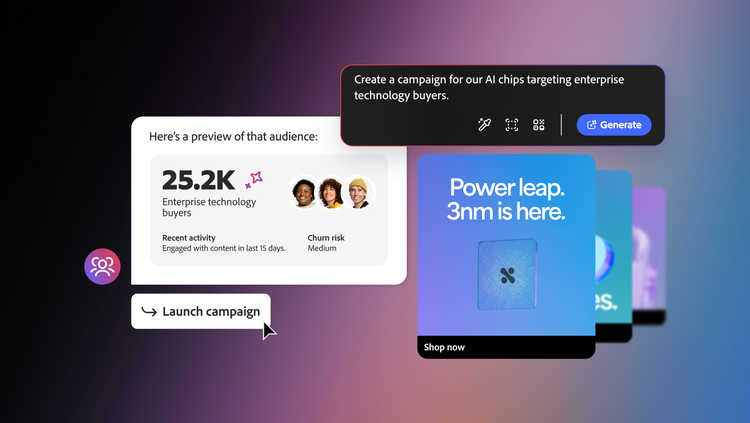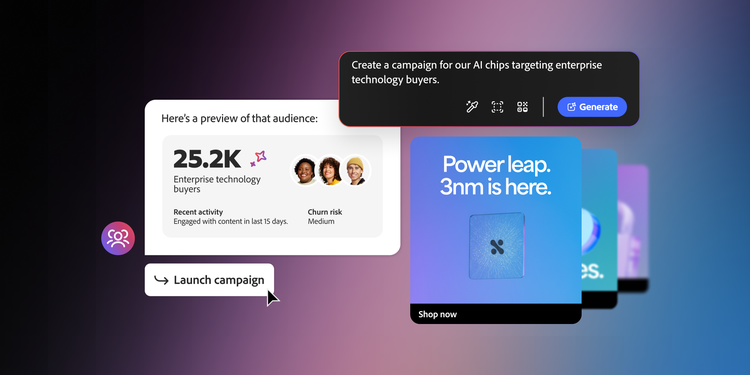
Most AI tools can produce content. Few can hold onto the dozens of small decisions that actually make a marketing campaign work: who to target, what tone fits the moment, or how your brand sounds in a subject line versus a landing page.
Adobe CX Enterprise Coworker for teams was created to handle that complexity from day one. Using a single prompt, it can generate a structured campaign plan that includes a built-out audience and on-brand content in minutes. But how good that first draft is still depends on the quality of context you provide, including your brand guidelines, audience details, and campaign goals.
This article covers how to approach each piece before generating your campaign so your first output is a strong starting point.
How Adobe CX Enterprise Coworker for teams works.
Before we dive in, it’s helpful to understand that Coworker runs on a simple loop. After you provide specific context, the agentic AI gets to work creating a campaign plan, journey, and personalized content. You and your team can then review the draft and refine it conversationally — asking Coworker for teams to shorten a subject line, swap in a different audience, or make an email feel more urgent.
Every output traces back to what you handed it at the start, which is why the setup below is worth doing before creating your first campaign.
Start by giving it your brand.
To generate content that feels grounded in your brand, Coworker for teams first needs your brand guidelines to learn from.
You can give it your brand in one of two ways. The first option is to point it to your public website at sign-up. In under five minutes, Coworker for teams uses your site content to learn your tone, visuals, and general guidelines. If you don’t have a formal brand kit built out, this is the simplest starting point and works best when your website content is publicly accessible. If some pages can’t be read, it may only capture a partial view of your brand, so review what it learns before creating your first campaign.
The second option is to upload an official PDF of your brand kit. From there, it can extract details from this directly rather than making assumptions based on your site.
Whichever path you start from, a few things will help keep images and copy on brand:
- Review what Coworker for teams pulled from your site or brand kit before your first campaign. Under Your Stuff > Brand within the application, you can confirm voice, colors, and logo usage are accurate.
- Upload an HTML email template if you have one. It’s optional, but it provides Coworker for teams with more details on how to apply your actual design formats to generated content.
- Revisit your brand kit when your site or guidelines change. It’s a living input and should be updated whenever you have brand changes. Be sure to set the brand kit version you want used as the default brand.
Build audience data Adobe CX Enterprise Coworker for teams can use.
Today, you can add audience data to Coworker for teams via CSV or import it from tools like Adobe Marketo Engage, HubSpot, Salesforce, and Databricks. The quality of your data sets the ceiling on the quality of your output. Here’s how to make sure it’s in good shape to get the best results:
- Include the fields that drive personalization. Email addresses are always required, but consider adding first names, last purchase dates, and any other fields relevant to your campaign goals. These are what will be drawn on to tailor content.
- Clean the list before you upload. Exclude unsubscribed contacts, internal addresses, and test accounts up front.
- Watch out for file basics. If adding data via CSV, uploads are capped at 8 MB, and unusual hidden characters are a common cause of upload errors.
- Skip sensitive or regulated data. Coworker for teams isn’t currently built for HIPAA-regulated data, so keep uploads to standard marketing contact fields.
Each audience is also attached to individual campaigns rather than stored generally in your environment, so plan on uploading fresh (or re-uploading) audience data for each campaign.
If you have HubSpot or Marketo Engage, you can easily set up these tools to bring audiences or smart lists you’ve already built directly into Coworker for teams instead of relying solely on CSV exports. Looking ahead, Adobe is rolling out additional API and MCP connectors for other marketing tools, CRMs, or data warehouses to make data uploads even simpler.
A detailed prompt leads to better outcomes.
While your brand and audience context are foundational, the prompt is what puts that information to work. A strong prompt names the campaign goal, describes the audience, specifies format and cadence, and includes any brand or product cues worth referencing.
Take a win-back campaign, for example. "Make me a campaign" doesn't describe who you're winning back or why. "Create a win-back series for customers who haven't ordered in 90 days, using the CSV I'm uploading, with seasonal messaging" gives it a specific audience to build around and a reason to bring urgency into the copy.
The same logic holds for an onboarding nurture series. "Write an onboarding email" leaves the goal open-ended. "Write a three-email onboarding series for new trial sign-ups, encouraging them to complete setup in their first week" tells Coworker for teams how many emails to plan, who they're for, and what outcome they're driving toward.
If you ever get stuck, you can navigate to the “Help me prompt” dropdown in the chat window for examples of various prompts. Or if you ever want to take your outputs to the next level and already have a PDF of your campaign brief, upload it alongside your prompt for Coworker for teams to use as additional context for the plan it generates. And if you want even more tips, review prompting best practices on Adobe Experience League.
Start with better inputs for high-quality outputs.
We built this teams version of CX Enterprise Coworker to be self-service enough that a small team doesn't need a full production bench to keep up with what its customers are telling it. Once the groundwork for your brand and audience data is in place, teams can turn a good idea into a shipped campaign in minutes, instead of pulling everyone off their other work to scramble on something urgent.
That's what marketing looks like when the tools already understand your brand and your customers.
Learn more about Adobe CX Enterprise Coworker for teams or sign up for a free trial to build your first campaign.