Some experiences are hard to explain — you don’t analyse them, you simply feel their impact. The same holds true for great technology: its value isn’t always obvious at first, but it becomes undeniable in use. Take Google Workspace, for example. On the surface, it appears to be a free set of easy‑to‑use, cloud‑based tools. While apps like Gmail, Calendar and Docs each serve a distinct purpose, Google Drive is the connecting link that brings them together. By centralising files in Drive, Gmail can seamlessly share documents, Calendar can reference them and teams can collaborate on them in real time from any device.
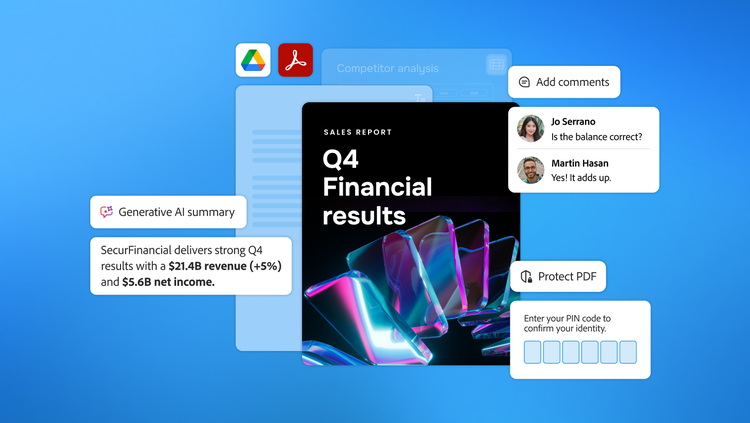
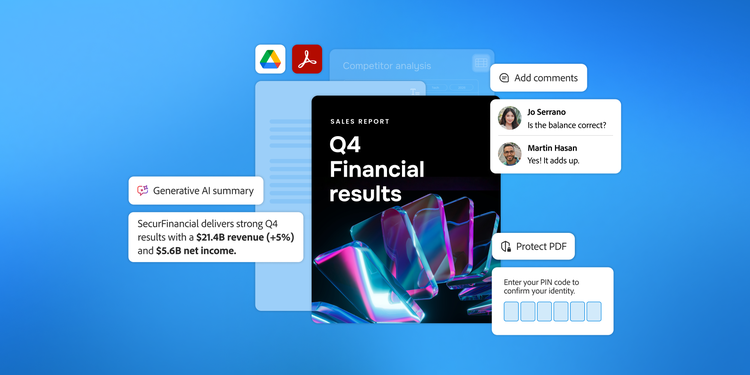
The Adobe Acrobat for Google Drive add-on, available in Google Workspace Marketplace, lets you access best-in-class PDF tools from Adobe Acrobat directly within Google Drive. As Google Drive stores billions of files, including Sheets, Docs, JPEGs, PSDs and PDFs, this add-on is designed to help users seamlessly create, view, annotate, modify, share and sign PDFs without disrupting their workflow. For Acrobat subscribers, it drives greater efficiency across three key areas: collaboration, workflows and output.
In this article, we will delve deeper into how you can:
Access Adobe Acrobat for Google Drive.
Add Adobe’s powerful PDF capabilities directly to your Google Drive environment. Learn how to set up the integration in just a few clicks.
Where to download?
- Individual users: Locate the Adobe Acrobat for Google Drive in the Google Workspace Marketplace, then click “Install”.
- IT admins: Use Google Workspace Admin Console to deploy the integration across your organisation to provide consistent access and standardised PDF workflows across teams.
Set Acrobat as your default PDF app in three clicks.
To make Acrobat your default PDF app in Google Drive:
- Open Google Drive and click the “Gear” icon in the top-right corner.
- Select “Settings” and click “Manage apps” on the left sidebar.
- Locate “Adobe Acrobat for Google Drive” and tick the box for “Use by default”.
Now, every PDF you double-click will open directly in the Acrobat interface. However, if you're not ready to change your default setting, you can always right-click any PDF in your Google Drive and select “Open with”, then click “Adobe Acrobat for Google Drive.” If you don’t see it in your list, click “Connect more apps” at the top of the “Manage apps” screen to add it.
Enable smarter collaboration and generate insights with AI.
The integration of Acrobat within Google Drive enables teams to collaborate efficiently across departments and geographies.
- Get instant insights from your PDFs: Use Adobe Acrobat AI Assistant (available as an add-on for eligible Acrobat plans) to quickly summarise long documents and surface key insights, reducing manual review time and accelerating decision-making.
- Annotate and search at scale: With free Acrobat tools (subject to Google Drive permissions), users and stakeholders can view, search and comment on documents, streamlining collaborative review cycles.
- Combine multiple file types: Acrobat subscribers can merge Google Docs, Sheets, Slides, Microsoft Office files, images and Adobe design files into a single, professional PDF to support complex, cross-functional workflows.
Understand professional workflows and manage e-signatures.
Adobe Acrobat in Google Drive empowers you to finalise every document with the precision and reliability you need.
- Export to Microsoft Office: Convert PDFs to editable Microsoft Word, Excel or PowerPoint files while preserving their layout.
- Manage e-signatures: Send documents for e-signature and track their status directly from Google Drive to accelerate approvals across distributed teams.
This integration is yet another addition to Adobe's suite of solutions, alongside Adobe Creative Cloud for Gmail and Adobe Stock for Google Slides.
Watch how simple it is to work with Adobe Acrobat for Google Drive.
Edit and organise PDFs without switching tabs.
With this integration, you no longer need to move between applications to access essential PDF tools.
- Modify and organise: Delete, reorder, rotate and edit pages efficiently — all in a browser. When you use the Edit PDF tool, Acrobat recognises text across multiple scanned PDFs and lets you edit text and images directly in the browser.
- Create high-quality PDFs: Convert files to PDFs while preserving fonts, layouts and formatting, ensuring consistency across internal and external documents.
- Auto-save to Drive: Save changes back to Google Drive, so your team can always work on the latest version and rely on accurate version history.
Unlock enterprise-ready PDF workflows in Google Drive.
With integrations with Google Drive, Microsoft, Dropbox and Box, Adobe Acrobat delivers secure, consistent document workflows wherever teams operate.
The Adobe Acrobat and Google Drive integration supports projects across departments and roles. From contracts and proposals to tax forms and legal agreements, it helps teams streamline document operations, improve collaboration and leverage AI-powered tools to work more efficiently, all within a unified, scalable platform. By bringing enterprise-grade PDF capabilities directly into Google Drive, organisations can increase productivity, maintain governance and ensure teams have secure access to the tools they rely on every day.
Learn more about Adobe Acrobat.
Recommended for you
https://business.adobe.com/fragments/resources/cards/thank-you-collections/acrobat