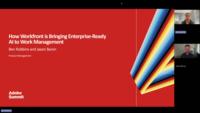
[Music] [Ben Robbins] Hey, everyone. We're so glad you could be here. I'm Ben Robbins and my partner, Jason Barron and I are excited to speak to you today about Workfront, and specifically a bunch of the AI innovation we have brought into development for the first half of this year. We've got a lot to cover on our agenda, but our main goal is for when you leave here, you know exactly what Workfront is doing to help enterprises scale. When we say that specifically, I want you to leave feeling like Workfront is going to save you a bunch of time so you can do more with less. So again, quick introductions. I'm Ben Robbins, I'm a Product Management Lead within Workfront. I oversee Workfront Workflow and the core activities that would have been part of legacy Workfront. [Jason Barron] And hi, everybody, I'm Jason Barron. I'm a Group Product Manager responsible for all things review and approval in Workfront.
Fantastic. So we'll start with a quick overview of Workfront and its artificial intelligence.
What you can see here on this screen is we have a ton of innovation happening over the course of 2025. Some of this we'll cover as we walk through the rest of the deck. But what I really want you to take away here is that all this innovation is what we are doing to put our investments behind, helping our customers be able to do better. When we talk about the enterprise, enterprise for us really means a few things, but it especially means scaling. Scaling has two parts. Scaling has the ability to be able to address a wide type of functions and personas that exist within an enterprise. Scaling also means for us the ability to help these teams and groups move faster so they can do more, so they themselves can scale. For our goal for this presentation is for as we cover these items, for you to understand how we're helping you move faster and do more with your existing resources, how we're addressing the needs and the wants of various personas and functions within an organization.
Now the first thing we'll talk about is just how our AI is structured inside of Workfront, how we are going to actually be able to execute and deliver that scale.
Our system, our architecture is actually fairly simple. We start with a series of micro-frontends that actually connect to our overall platform or reasoning or orchestration engine. This orchestration engine connects directly to a variety of different Workfront-based skills. We'll go over some of these specific skills in a moment, but really it's the skills that are meant to solve individual, very specific use cases that we can return very accurate and very fast responses to address our customer's needs as opposed to using just a one-size-fits-all approach to everything a customer would want. In addition, this means that we can actually continue to expand and add new skills to be able to deliver more and helped us scale what our customers want and allow them to address more of their individual needs.
That being into a few of the things that we've built so far as skills and that we have coming forth in the rest of this year, is our ability to take natural language to make suggestions for people who are looking and trying to find or create a particular form. Individuals inside of Workfront work with forms all of the time and it oftentimes takes them a long time to find the appropriate form or sometimes they don't find it, and they request a new form to be created, and now you have duplicate forms for the same type of intake requests and this can lead to confusion. We don't want that to happen to anybody. That surely doesn't help people move faster, it doesn't help people deliver the projects with more speed or on budget. So what we've done is we've made sure that when people are starting with the intake that it gets done correctly the first time. You can use natural language to type in what it is that you want to achieve, and our AI will actually start to filter through and find and recommend the right forms for you, making sure that you can find the correct form very quickly without wasting your time, and certainly making sure you're not duplicating an intake form that you could already use.
We are also moving on to how we help people with their requests. Oftentimes, requests starts from a document that was already collaborated on, where individuals already had the information they need associated with the work they want to get done, and they end up doing redundant work, copying and pasting elements of that work into Workfront. What we've done is actually take the ability to take one of these unstructured documents, whether it's a PDF, a Word file, or a PowerPoint file, and drag and drop them and place them directly inside of Workfront, and then start to extract that information into a request form based on the content and the titles of the form in that request. What this means is that individuals no longer have to spend their time either retyping or hunting through the original document, and copying and pasting information they've already settled, that's already true within the organization. We can pre-populate that for them, and the human just stays in the loop, confirming and tweaking the information as needed. Now the request is just one part of that. Eventually, we will also make sure we address the same capability for briefs. Briefs start from similar documents, and individuals are similarly spending their time doing redundant work between other third-party tools, and bringing that information inside of Workfront. And we want to simplify that for everybody, save a ton of time for projects and campaigns on that front end. And we know the more time we save on the front end, the more flexibility that gives our customers and their users to be able to deliver their projects and get them out the door on time and as intended.
Now one of our biggest innovations that we've started with over the course of this year is what we call Workfront Priorities. Workfront Priorities is a new simplified experience for individual contributors that saves them time from the very beginning. We've taken a lot of the core areas that individuals working on tasks would previously navigate to in Workfront. They would see they were assigned a task, then they would go look for a document that was associated with that task, go find an asset, go look at the comments, go upstream with the breadcrumbs to look at the projects. That takes a lot of time. It's a lot of work overhead. And we didn't want people wasting time, so we created Workfront Priorities, which is a simplified view where individuals can see all their tasks in a single list. They can move and adjust those tasks based on different priorities. And when they click on a task, they get a single modal that gives them all that contents they previously had to navigate to, gives them all of that context right away so they can see it and understand the work that they need to do. But when we were building this out, we wanted to make sure that AI was core to what we were building rather than just being an add-on. So there are a few good features that we put into this, that we are hearing feedback from our customers that's helping them be more successful and save even more time than we imagined when we first built our Workfront Priorities. The first is Smart Filters. When you have a large list of work or you're trying to oversee a ton of work within a system, that list can be overwhelming.
In today's world, individual spend time, even looking at preset filters inside of Workfront, trying to figure out which filter is the right filter, they click on it, it doesn't show them what they intended for it to show, and then they hunt and peck through several other filters, sometimes still not finding what they need. We wanted to do away with that old model. So as part of this experience, we introduced Smart Filtering. What Smart Filters does is it allows a user to be able to do natural language, type in what it is they want to see, and then we show up for them. So for example, if a user feels like they're behind on tasks, they can say, show me work that's late. Or if they know they're going on vacation next Wednesday, they can say, show me work due by next Tuesday, and that's exactly what we will show for the user. What it is that they're thinking, that they're looking to see based on the filters they would previously click on, they can now just type that in as a request, and they can see that right away. This is helping individuals save a ton of time. Another way we help them save time is by allowing them to catch up very quickly. I mentioned we had the model with all of the context that brings information that people previously spent a ton of time navigating to. It brings that information to the forefront. But what Catch me up does is it uses our AI's awareness of what's present on the screen, what's part of the UI, and they can read it and tell you what's new, what has changed since the last time you viewed this task. So as a user, I can click the Catch me up button, the AI Assistant will pop-up and it will summarize, but let me know what documents were added, what was the content within those documents, what sentiment or what information has changed as part of the comments, if there are any new project details, or any information like that that's been added since I last looked at this project. Give me a very clear and crisp summary, so I know where to spend my time. And even more so, it gives me suggested action items, so I know where I should spend my time next to keep not just myself on task and on time, but keep the rest of my organization who's relying on me on task and on time as well.
Now we've talked about a bunch of different skills that we've built out that scale across that AI framework I showed you earlier. But what we've been building is custom solutions as well so customers can solve their needs that are unique to them. What we've seen is while a lot of our customers have very similar overlapping use cases, they tend to have some individual use cases for their organization that's based on processes that were built a long time ago, or just the way that they're organized, or the way that their team talks, whatever, it's natural to their DNA, so they have something that's a little bit unique. And it's hard for an organization to be able to build out and scale these solutions for each and every customer we have. But we do care about our customer's individual needs being met. So what we've allowed for is those skills that you've previously seen and the skills we continue to build out, we tie them in to a custom skill builder such that you can type in with natural language what it is you want to achieve, and then you will get a list of skills that we can use to apply to meet that use case. And then you can click Generate Assistant. And when you do, we start piecing together on the back end these individual skills as a daisy chain to start meeting that use case. Sometimes we'll have to have fusion in the mix to fill the gaps so that you can fully have an end-to-end workflow that meets all of your needs. But our vision here is to start simplifying the way that our customers work, help them fill the gaps that software doesn't naturally do for them. Because usually, when the software doesn't handle a gap naturally, that's when a manual process comes into play, that's where risk can come into play, and that's where delays can come in. So we're really excited about our ability to deliver custom skills to help solve our customer's needs.
Now one of the big things that we're investing in is our Workfront Project Health Advisor. Typically, when a customer gets Workfront, they're doing so because they want to be able to manage and take a look at their work, organize that work, but really understand what's the risk, what's coming down the pipeline. Today, even with Workfront, in order to understand that, they have to build in a lot of questions inside of reporting to look at specific areas that might be at risk, then make a subjective assessment if a project is at risk or not. And these assessments aren't always consistent, especially not across teams or various individuals or various functional groups, so we wanted to solve that. So what we've built is a scoring system based on all the information we have around what makes customers productive or likely to hit their deadlines and their end goals for their campaigns. We've built a solution that will give you a score that you can customize and let you know right out of the box, which projects are at risk, which campaigns are suffering, and what you can do to improve those campaigns. Now one of the things we noticed, not every organization works the same, and not every functional group within an organization works the same. So we've actually created this solution with the attempt to scale for enterprise customers by allowing them to build out multiple different types of these health advisors, and with each one, they can build it for how a different team functions, or how a different group functions. So we understand that marketing, what makes a marketing campaign at risk isn't the same as what makes an IT PMO project at risk or a legal project at risk. So you can create as many of these as you need, as many of these different advisors, and then get down to business and look at the entire scope of risk piece by piece for each of your different teams. And to do that, to get started, you just click New Agent, as you see in the right-hand corner here.
You give a name and an intent for what you want to start building the foundation, and then we start customizing it because we want to make sure that the score you see, that's assessed to your risk, isn't something generic where you have to question if something really matters or not. We want you, the customer, to be able to dictate what matters for them. So we start off with, how do you initially kick off a project? When does starting really matter for you? And then we also want to know, when does your project officially end? These customized start and stops let us know how we monitor and start assessing your timelines so that we can use the AI to determine how those timelines are being met or how they're not being met.
From there, we start asking you a little bit more about your operational model. How do you start to measure the work within your system? What methodologies do you use? Once we allow you to select your methodology, we then start letting our customers choose a bunch of different triggers based on fields inside of Workfront that they want to monitor. Again, these are the fields that people previously built reports to get insight into to understand their risk. So now you can find native and custom fields and build out the outcomes for those and how those associate with your risk, all part of this Project Risk Advisor.
And from there, we also like to know how you handle the scope of your work, if new input or changes of added tasks or long-running tasks, if those are going to have an impact on your work. And once you've built out this customization, then that's when the AI can go to work. So you click, say-- And we give you four distinct ways to actually monitor and view the health. One option is you go to the project page itself. On the project page, you can see a score, you can see that summary. When you click on the score, it will give you a quick overview of the things that are either going well with that particular project or the things that are putting you at risk. It's really great to be able to see at a glance, if there's anything that needs your attention, especially when you're trying to review the status of projects with a larger set of stakeholders. Now sometimes you want a little bit more. So if you click Review, you can actually get a double-clicked, deep dive view of the risk that you saw. You can get a summarization that also allows you to start taking action on the overall project. And you can click within each one of the main categories that we've measured and assigned risk to, and find out the specific items in each one of those categories that's driving your risk. And then we'll provide you links to those areas, so you can go there and start to change the items that are providing you risk, and then get your project back on track with a higher score right away. This removes a lot of the previous navigation, or wondering, or reports that people had to do.
But sometimes you don't want to go project by project. Sometimes you just want to ask a question. Well, that's why we've allowed it, our AI assistant to be able to be connected to our Project Health Advisor. So that way you can type into the assistant which projects are at risk, or if a particular project that you're viewing is at risk, so on and so forth, and use that and bring that information into the AI Assistant and do a lot of the deep dive review I just mentioned from the previous slide. But sometimes you also want to make sure that you have a series of projects and you want to know how they're all doing because you want to have an aggregate understanding of how the work is going on in the system. And so to meet that use case, we have brought in the ability for you to be able to take these individual reports, assign them to a dashboard, and pin them so that you can distribute them across teams and stakeholders who need and want to see this information. As you can see, we provide good insights into what is driving the risk, whether it's timeline delays, scope creep, resources, budget. We want to make sure that we take ownership of it all so that we can provide you all the information you need to stay on track. Now if you go to Summit, you can see Project Health demoed live at the booth.
Now automation is one way we're really going to change the game for our customers. Again, I've mentioned time and again how we really want to save time for individuals. And we're going to start bringing it all together for more automation. So you heard me speak about our Project Health Advisor. Now it's great that Project Health Advisor indicates and advises for people where those areas of risk are. But we think it would be a step better if it could automatically start to change some of those elements for our customers and then proactively notify you through the assistant so that you can confirm or decline the changes that were met. And how we would do that connects all the way back to those skills, expanding scalable set of skills we mentioned earlier. Because we can identify the risk with our Project Health Advisor, and then once we identify something, let's say, for example, a project is at risk because no one's assigned to any of the tasks, we can use the skills we have for task assignment and task creation to be able to add individuals to there, and also use our resource-based skill that's going to recommend which is the best resource for a particular task based on their availability, and then that's going to give you the resource to assign it to. Then we'll use our task skill to actually assign that individual to the task, and then we will automatically drive that score up and notify you about what that change has been. So we're really excited about stepping into the future very rapidly, not just giving you more insight and information about your risk and allowing you to mitigate that every step along the way, but also making sure that we can do it for you, so you can spend more time thinking in a strategic or creative manner instead of navigating across Workfront. So with that, I'll hand it over to my friend Jason, who will talk to you about the Workfront AI Reviewer.
Awesome. Thanks, Ben. So some great, super exciting developments within Workfront and AI, and this is one that I'm just super excited about is around the AI Reviewer. This is something we talked a little bit about Summit last year. We showed the first iteration of that. We have gotten some feedback from a set of customers and an alpha around how we can improve that, and now we're ready to have this be for prime time coming here in the next couple of months. And so I'm really excited to highlight this and show it to you, and really for you to see the value that we're going to be able to provide within Workfront to increase your content velocity. So just diving right in here, today for the review and approval process, typically it looks something like this, where there's a request that's sent, the reviewers are notified of that request, they sign in to review, they provide their feedback, and then someone needs to go through and review that feedback. And that's typically on average is about 3.5 days to have that process. And so what we're trying to do is really cut that process down and optimize it, so it's down to a matter of seconds where you can add an AI reviewer, send that request off to that AI reviewer, and receive that feedback much more rapidly. So we see this as a key value add for you to help drive the content velocity, so that way you can get content out faster.
So a lot of companies like yourselves have brand guidelines that are established, and sometimes they're in a brand book like this or digital, but essentially in the brand guideline, there are going to be different criteria that need to be followed, in this case around imagery. So you can see here that this fictitional brand here, that there needs to be natural lighting and natural beauty that are included, and also it needs to show and highlight active exploration rather than kind of casual relaxation, that there should be diversity and authenticity, and lead to inspiration, focusing on visuals that will really help inspire people to get out in the outdoors.
So within Adobe GenStudio, there is a section here at the bottom left for brands, and this experience within GenStudio, this is the GenStudio Home, this would be accessible to all customers that have Workfront. So when you click on Brands in the bottom left-hand side, you can see this Brands area. So this would be populated with all the brands that I've created in the past. In this case, we're starting new. So on the top right, you would click Add Brand, and I could either drag and drop a brand guideline, maybe a PDF or a DOCX file, and it would automatically populate for me, or I can also create it from scratch. So in this case, we're going to create this from scratch, and I'm going to give it a name of WKND Brand.
So I'm going to click Add Brand, and now you can see here there's the overview, so this is ready for me to populate on when to use the brand and the brand voice guidelines and image guidelines and channel guidelines and so forth. What we're going to be focused on today, and initially with this first release with the AI reviewers, is all around the image guidelines that you can see in the top tile here. So you can see the image guidelines, and within here, you could have image categories. So description, you can say what kind of content type it is, the composition, the environment, the color, lighting, mood, and so forth. All of those guidelines for that image category will be evaluated or will be referenced in the evaluation of the actual AI review. So I'm going to go ahead and populate those. So you can see here those brand imagery standards that you saw in that previous brand book, and now I can see here that this is ready to go, ready to be published. So I'm going to go ahead and publish this, and now here I am within Workfront, and if I go to the waffle menu on the top right in Workfront and I go to the Setup area, now admins will be able to see this section under the Review and Approval area for AI reviewers. In this, you can see there are five AI reviewers that have already been created. I'm going to create a brand new one that's going to reference that other brand guideline that we just created within GenStudio. So I'm going to click Add New...
And now this is where I give the brand a name.
I select the brand, and then I give it the image category that we established previously. So you can name it whatever you'd like, and for each AI reviewer that you're creating, you can have it reference a different brand or even a different image category within the brand as well. So in this case, we're going to say, it's the WKND imagery checker, the brand that we had created previously, the WKND 2025, and then we're selecting the category of Brand imagery standards.
So we're going to go ahead and create this.
Okay, awesome. You can see it there at the top. Now we're ready to actually apply this AI reviewer to our content. So we're going to go over into a project into the Documents list area, and now you can see here on the right-hand side in the DOCUMENT SUMMARY panel, I have the ability to add approvers just like I would a normal human approver. I can actually add the AI reviewer as well. So I'm going to click Add here, and I'm going to click in the Add approvers or reviewers area, and I'm going to add a human approver, and then I'm also going to add that WKND imagery AI reviewer that we had just created.
Once I hit Submit the request, this is where the magic happens. So the AI will go out, it will open that asset, review that asset based on the brand image guidelines that you had created and referenced, and then it's going to come back and provide a score. Now you can see on the bottom right-hand side, the WKND imagery checker has completed their work. They've reviewed it, so you can see the status there just like a human reviewer or approver, and you also see there that it's provided a score of 75%. What that means is that that asset that you had uploaded is aligned 75% of the way for your brand guidelines. And some different companies have a different threshold that they feel is acceptable for a pass on the brand guidelines. So based on how you've determined that within your own organization, maybe 75% is fine. It's good to move forward. But if you'd like to have some additional detail on this, you can go ahead and click on the score, and it will bring up this detailed view where you can see the time of review of this asset, and then you can see the guidelines that need some attention. So you can see right here that the background effectively showcases nature, but should focus more on active exploration. So again, this is more around someone kind of sitting here relaxing, looking at the view, which is beautiful, but really to inspire someone to go out and explore and have adventure, this doesn't totally align with that, but this may be acceptable based on what the campaign is and, again, the threshold that's acceptable within the organization.
Now one thing I wanted to mention as well, since we are treating these AI reviewers just like you would a human user within Workfront, you're able to add these individuals, these AI reviewers, to approval templates as well. So within the approval templates area, you can create a new template. And then from here on the right-hand side, you can just choose the AI reviewer, in this case. Of course, you could add additional human approvers if you wanted to, but in this case, I'm just going to add the AI reviewer.
And then I'm going to go ahead and click Save.
And what that will do is it'll save that template, so that way I can leverage that template later for an approval and have it automatically populated. And again, you could do this with all the different AI reviewers you create, based on all the different brands, and you could have these AI reviewers be able to provide all that feedback for you to help save that time.
Now when we look at a release schedule, so we have our Summit demo that's happening right now, and then we have a preview release for May 29, our production release June 12, for those customers that have the monthly release schedule opted in, and then for the remainder of the customers who it applies for, will be July 17 for our quarterly release, which will be 2025.07. And this will be for all of our Workfront Ultimate customers. So those that have the Ultimate package with Workfront, you will see this fully rolled out to you July 17. So we're really excited about the progress there. And as we look at what is the future strategy of this? So initially, our first phase is getting the brand image guidelines initially. It's going to support JPEGs, PNGs, WebPs, and non-animated GIFs.
And then our next phase is going to be able to extend that out to the brand copy guidelines that are more text heavy. So you'll see supporting PDFs and TXT files, other text type files, so you can comb through those files and make sure that the brand is aligned with the copy that exists within those files. And then the next phase after that is to extend that out to compliance. A big request from a lot of customers has been to extend this beyond just brand, but also there's legal verbiage that needs to be used or shouldn't be used. And to be able to evaluate the content based on those guidelines to help save significant time for those existing reviews. And then, of course, we want to extend this out to additional file types which will grow. And we see this AI reviewer becoming smarter and smarter over time. We're really excited about the progress and where we're going with the roadmap and we would love your feedback as you start using this AI reviewer in your workflow, how it's saving you time and effort and what we can do to help streamline and improve this asset for you so that way you can, again, increase your content velocity as an organization and improve your overall content supply chain.
Back to you, Ben. Thanks, Jason. And that was fantastic. I really enjoy the AI reviewer demo every time I get to see it. In fact, for this audience, I actually specifically choose Jason to co-present with me just so I get to spend more time and hear a little bit more about the advances of our AI reviewer each time. So I hope you got as much from it as I did. So I'm going to start closing us out with our next topic on what Workfront is doing with Microsoft Copilot. Nothing is more enterprise than how an organization spends time and operates inside of Microsoft products, specifically Word, PowerPoint, Excel, Microsoft Teams. Each of these different Microsoft services consume a bunch of time and a bunch of creative energy from your workers. Now when we talk about how we want to help those same enterprises scale, those same customers that we share with Microsoft, we can't imagine a simpler way than making sure Workfront can meet the customer where they are, where they are already spending a bulk of their time. So that's why Microsoft and Adobe have engaged in a very strategic partnership together to bring the best of Microsoft Copilot and tie that into the best of AI assistance and AI work that Adobe is presenting. So we're going to go over a few use cases and really how we are bringing this together for specific contributors across an organization. But if you take away one thing, I think it's important for you to understand that as you and your organization start to adopt Microsoft Copilot and you start to expand what you're doing inside of AI instead of Workfront, you're going to get a hold that's greater than the sum of its parts. We are going to be able to do more because with Workfront, in Adobe, we have the context of all of the records and all of the data we hold within Adobe. Microsoft has all of the contacts and records through their Microsoft Graph. And when you combine these two, you start to get a flywheel of success based on how the context from both of those can play off one another to do and solve problems that you probably did not even know you were looking to have solved.
So I mentioned Adobe, not just Workfront. This strategic partnership involves multiple Adobe products bringing in work from the AEP AI Assistant, from the CJA Assistant, of course, from all of our Workfront skills that you saw me go over in us review just a little while ago. So as you work with Copilot and the Adobe Marketing Agent, not only will you be able to work and engage with Workfront, but you'll be able to work with these other products as well. But from a Workfront perspective, what we intend to solve is make sure you can streamline the work that you have and effortlessly communicate and make changes within the system of record from any of these Microsoft surfaces you happen to be in.
So we spoke about Project Health just a little bit ago. Now if you're anything like me, I know that I'm constantly moving from one meeting to the next. And in this shuffle, I'm oftentimes responsible for giving updates on status, what our risk is, what risk mitigation we can take, so on and so forth. This is a lot of information and it requires me often to bounce back and forth across tools. So I personally can't wait for the day when this Project Health assessment is complete and when we partner with Microsoft because it's going to solve much of that. So imagine you're an individual in a meeting, much like this, or preparing for a meeting. You know you need to give a status update. You're already in Microsoft Teams because you are moving from one meeting to the next. At that point, you can just engage the Microsoft Copilot. You can add Adobe Marketing Agent and you can ask which of the projects that I'm responsible for, which of the campaigns I'm responsible for, are at risk. And then what you're going to get is that AI Assistant response that we reviewed as one of the four ways we surface information and enable decision making for our customers as part of Project Health. You're going to get that response fed back from Workfront into Copilot and then parsed out inside of Adaptive Cards and as text chat content within Microsoft Teams so you can see and understand the full scope of the work that you need to do. And since this work and information is coming in with Adaptive Card, you can still click in, get those details around the risks, and all of a sudden without even landing inside of Workfront, you're very knowledgeable, you're very prepared to speak intelligently about the risks that are outstanding for each of your campaigns, what needs to be done to adjust those risks, and if there are any individuals who are responsible or who are bottlenecks in that particular project that you need to reach out to. This solves a lot of headache, a lot of anxiety for a ton of people by making them more prepared and, of course, making the meetings that they're attending next that much more efficient, which of course helps everybody. Even with those Adaptive Cards that come in, you see some indication of risk. Since it's an Adaptive Card, you can click in and start making some adjustments so your story can also be around how you've already started to mitigate the risks that you only just a few moments ago found out were present.
So you move on from the risks. As I mentioned, you can use our Intelligent Workflow skill set to be able to get some of that work back on track, work within Microsoft Copilot, start getting that information, telling it what to change. But it doesn't just stop there because the information and the workflows go both ways. So if you were, let's say you've gone to another meeting and within a meeting you found information about projects that need creation. What are the action items that are assigned? And then, of course, the individuals that need to be assigned for each of those action items in order for your team to be successful or to move forward.
That's a typical day in my life. I'm sure it is in yours. But what's not typical is the power of what we're going to be able to do with a combination of these two AI solutions. Now again, without even leaving Microsoft Teams, you'll be able to open up Copilot. It's going to have the transcript and all of the context from that meeting. And you can say, create the project that aligns with the information we had from that meeting. For the action items that we discussed, please make those tasks and now assign them to the individuals we said would be the leaders for those individual tasks. Microsoft Copilot, again, churns through the transcript of the meeting, takes the information, extracts, sends those as prompts into the agent that the forefront AI capabilities that we mentioned earlier, sends that information in, and we take it to our orchestration engine, feed that to our skill set. And then what we do is we hit those different skills, right? We hit that task creation and assignment skill I mentioned. So we create the name of the project, we create the tasks, we assign those tasks, and now you've been to create a project, bulk create tasks, and bulk assign work to different individuals, mind you, all without even navigating into Workfront. Previously, you would have to leave where you were, go into Workfront, create the project, go ahead and do each one of these tasks and assignments individually, and now that's gone. So it's a much faster, much cleaner, much more efficient way to start getting your work done. And similarly to the last example, you'll get the feedback to you in an Adaptive Card inside of Microsoft Teams. If you need to make some adjustments, you can. Now I mentioned there are other ways that we bring this information together. Our intelligent workflows also allow us to be able to take information that, if you're inside of a Microsoft product surface, to be able to take information outside of Workfront and put it into Teams. And we're going to be able to do that in a lot of different ways. One of our key ways is, let's imagine you were inside of Word or PowerPoint. A lot of our customers build out their initial creative briefs there, and they collaborate on them, they get them, they turn them official, and they want to use that work later to help them reuse campaigns that were successful, but they really don't have access to it because they take the information from Word, PowerPoint, they then manually enter it into Workfront someplace, and it's good there as a record, but sometimes it's hard to find all of the right information from a record when you want to reuse it. Well, now, the next time, once you've created a campaign, you've established it as a record inside of Workfront, or even a plan inside of Workfront Planning, you can go into the Copilot inside of PowerPoint or Word, you can say, "Hey, I have a campaign that's going to be very similar to Frescopa, to whatever the name of your campaign is, or you can say that it has different attributes from various campaigns. You can say it has the same channels from the Frescopa campaign, but it has the same business objective goals from campaign X or Y, and then Copilot will send that information, those requests as prompts into our AI Assistant inside of Workfront, which will then use those different skills I mentioned earlier, find the right projects, extract the information from those projects, and then bring it into the new brief that you're trying to create and start to draft through the challenge of AI of Copilot, start to draft that initial campaign brief or creative brief for you based on the information you had. This means that individuals don't have to start from scratch. It means that if you have an effective plan or an effective campaign or project that's inside of Workfront, you can start to reuse it to create new campaigns more quickly, and there's nothing that's going to help people scale faster than being able to finally reuse work that was previously successful. That's one of the big gaps in technology today. We create a lot of content, we create a lot of assets, but the reuse is limited, and this is going to help us start to solve for that reuse capability, and, of course, once you complete building out this campaign brief and you've socialized it with your team and you've collaborated through comments and Microsoft Teams, you can either, through the Copilot type and say you want to take and create a new project with the attributes from this campaign brief and start creating that right away, all again from the surface you're in, or, of course, you could do one of the other workflows that I mentioned earlier, where once you have this file as an artifact, be able to drag and drop it inside of Workfront and start creating that request or that campaign brief. So this starts to become a flywheel of sorts where one improvement builds upon the other and allows you to start to really hit speed at scale for how you improve and how you leverage your resources to be able to continue to do more with the teams and individuals you have and focus more on the creative work, the knowledge work, rather than the tedious task of data and information management. So I hope as we've gone through our story today, you've been able to see a lot of the information that we have, a lot of these innovations that we are building are contributing to different personas, whether you're project managers or individual contributors who are looking for less navigation and simplified experiences, or whether you're in markups and you're looking at project information about risk across the business. We want to make sure that we're helping everyone within our enterprise organizations move faster. Jason spoke to you about our AI reviewer capability. Very clear, that's going to move something from the magnitude of days into seconds. So 2025 is an exciting year for all of us here at Adobe Workfront. We are very excited to be able to take what we are building and hand it off to you all and save you and your organization time, money, and make sure that you're able to get what it is that you're building out with more success. So thank you so very much for spending time with myself and Jason. We hope you have a great day, and it was a real pleasure speaking to you. Take care. Thank you. [Music]